Prism Launcher - Modpack installation guide - Luna Pixel Studios
Create New Instance
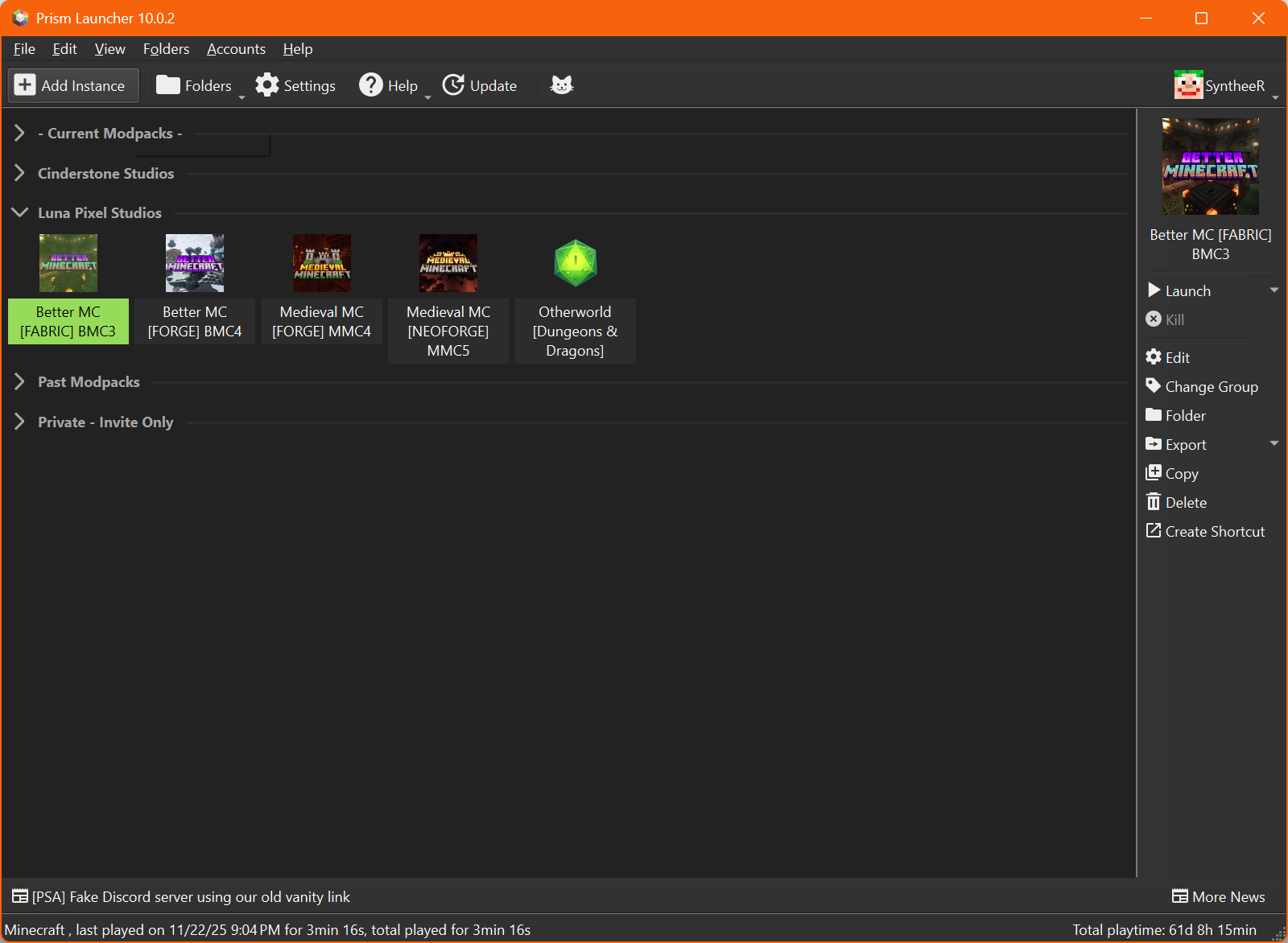
Open Prism Launcher and click on "Add Instance".
Finding the modpack
Select "CurseForge" on the left as the source of where the modpack will be downloaded from. In the filter type the name of the modpack you're attempting to install.
💡Tip: Typing "BMC5" in order to install "Better MC [NEOFORGE] BMC5" is the easiest way of finding it.
💡Tip: Searching for "LunaPixelStudios" results in all LPS's first-party modpack list.
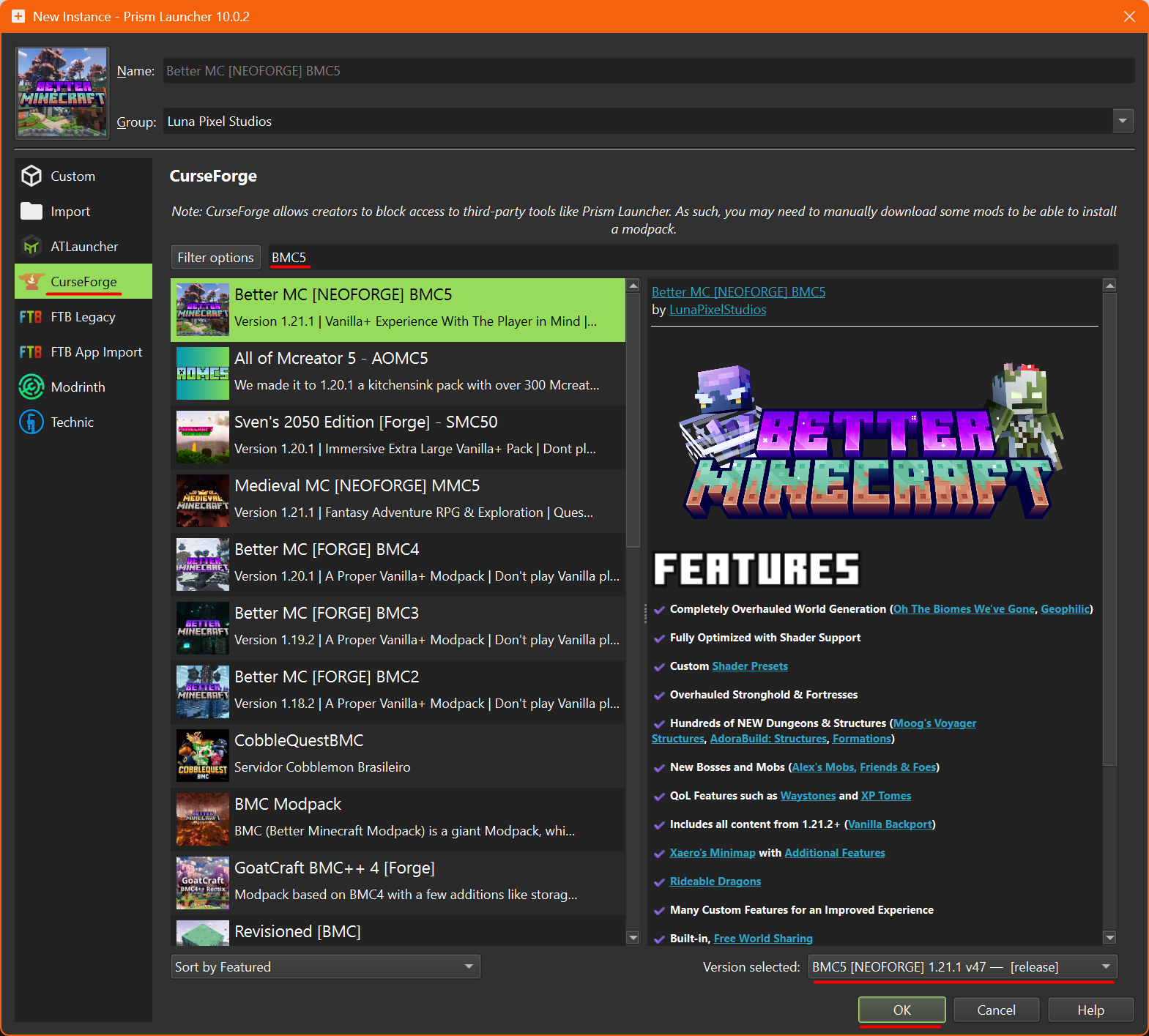
You can check the version by using the dropdown (ensure to pick the one from the top, which is the latest), and confirm the installation by using "OK"
Blocked Mods
Certain mods are blocked from being downloaded by 3rd party Modpack managers like PrismLauncher. A pop-up will appear with the list
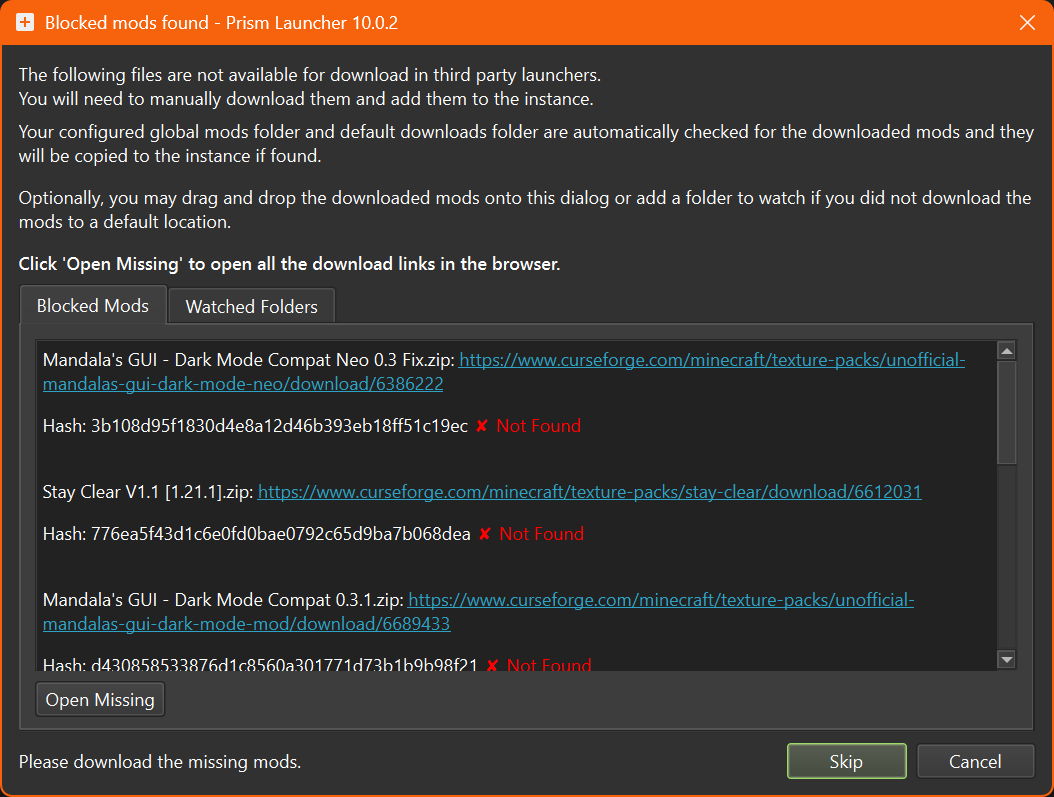
Pressing the "Open Missing" button will open multiple tabs using your default Internet Browser. All that needs to be done is saving the mod, datapack and resourcepack files in the "Downloads" folder.
PrismLauncher will automatically detect downloaded files as you go, and update the "❌ Not Found" status accordingly.
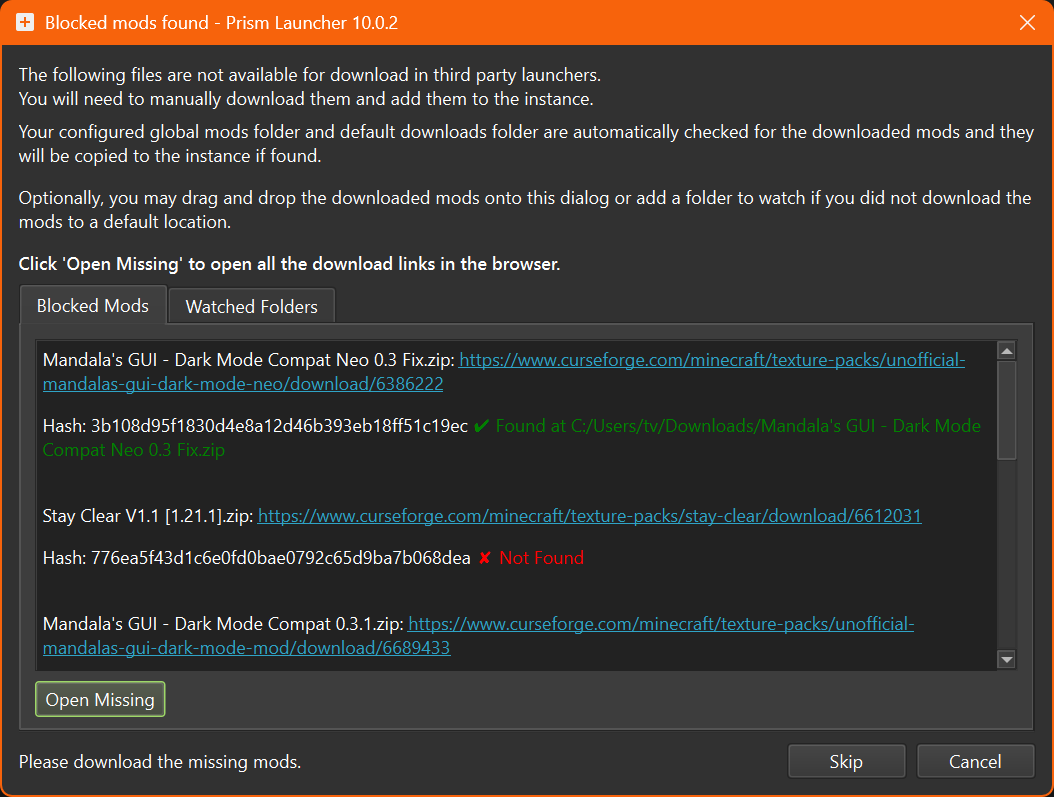
⚠️Warning: Ensure that all mods from the list are marked as "✔️Found".
Once all files are downloaded correctly, the bottom bar will change, and the "Skip" button will turn to "OK" - press it to continue.

Installation progress.
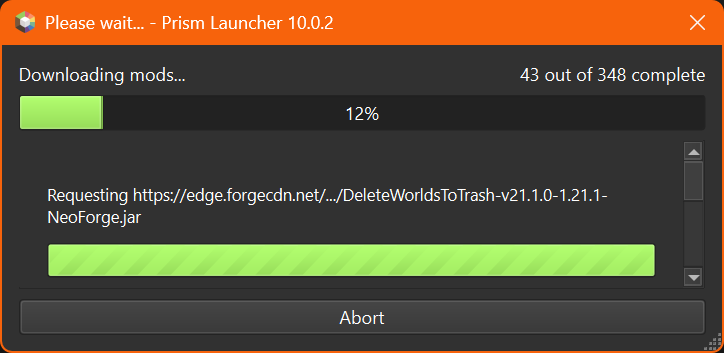
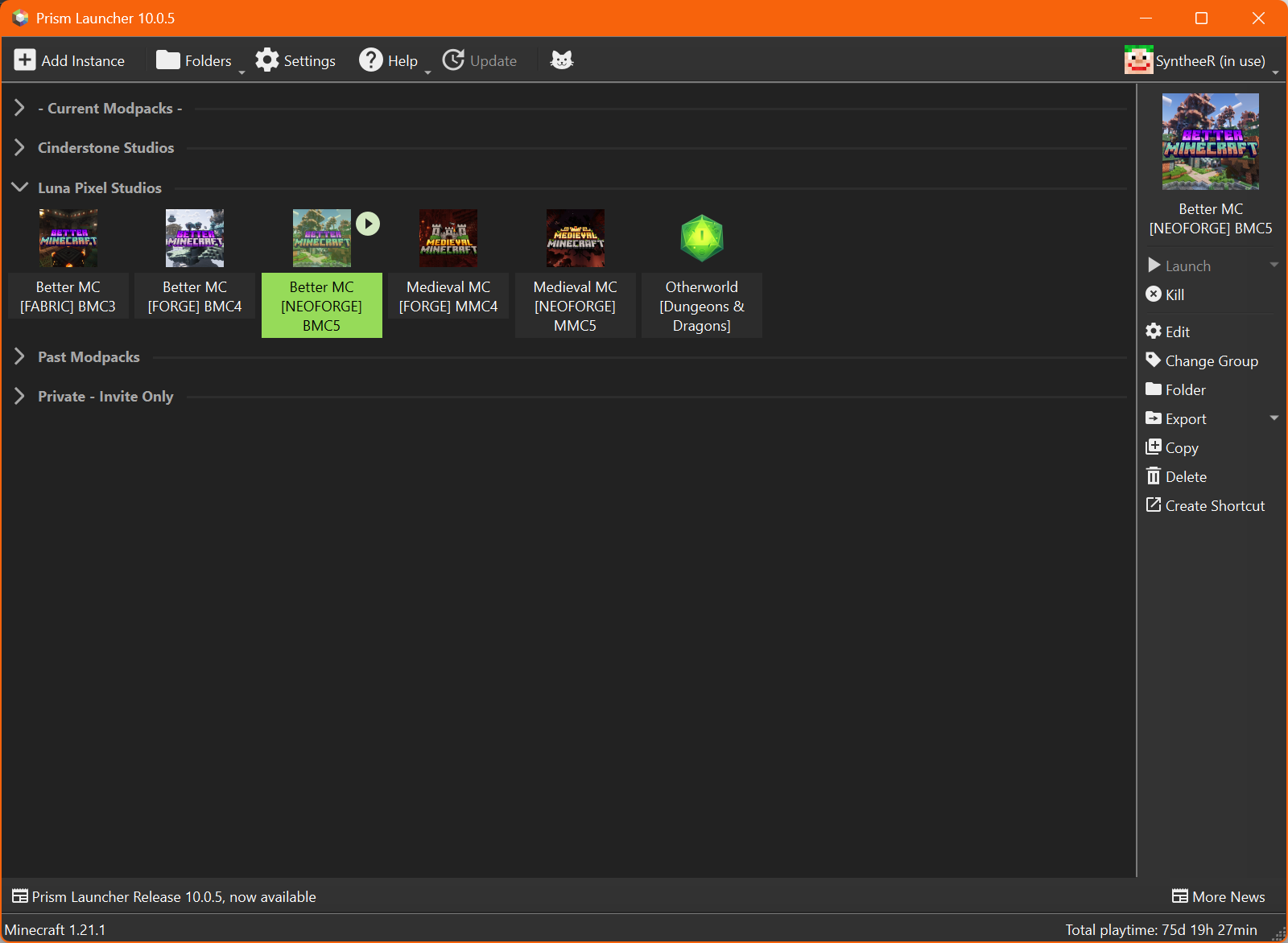
Once the mods are installed, the modpack will just appear in the list of installed modpacks. Double clicking it will load the pack.
Extra steps
Installing Java
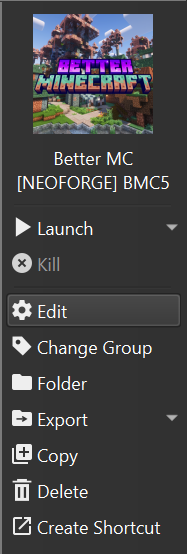
Clicking "Edit" button on the right side allows you to change all the options related to the selected modpack.
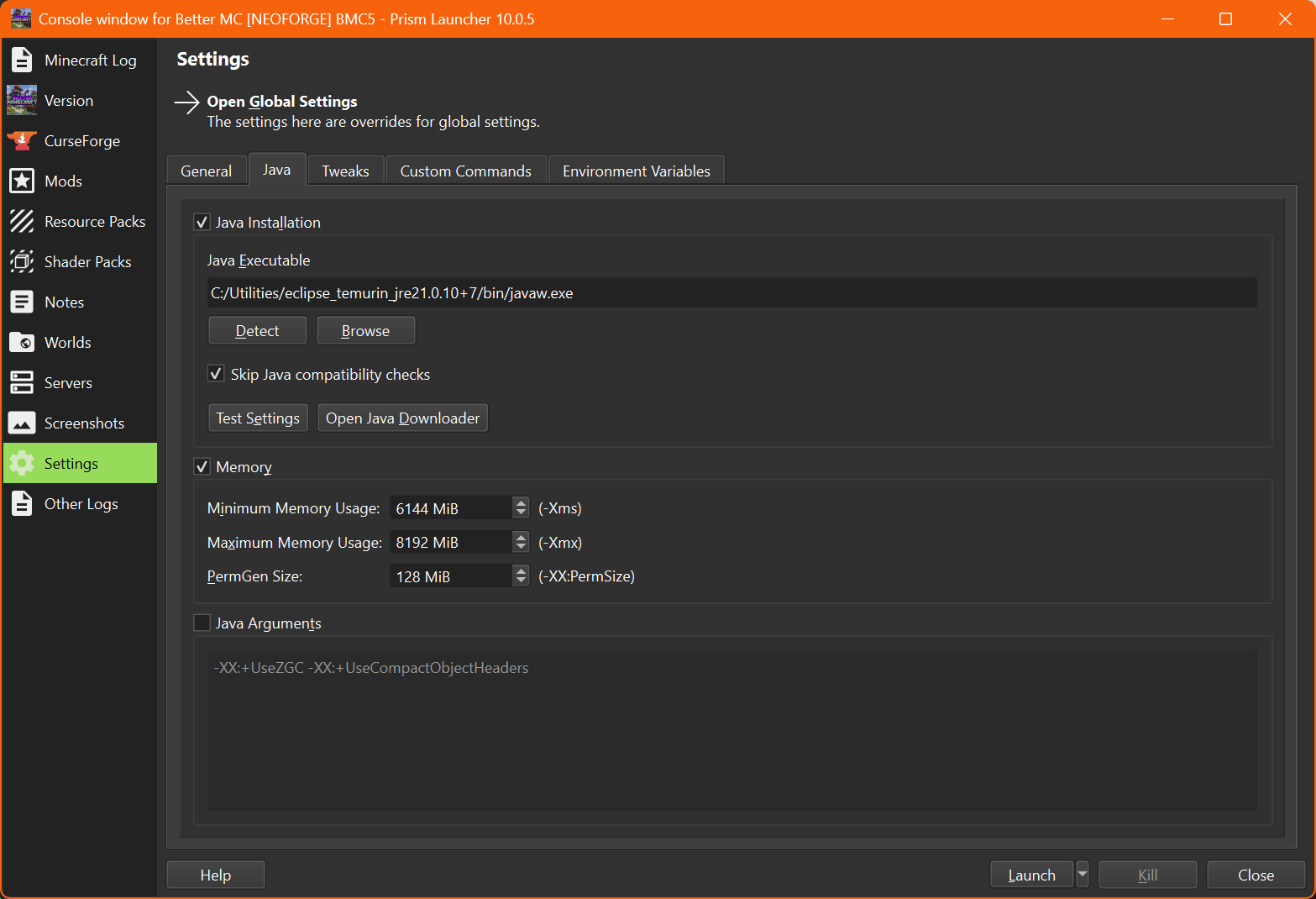
To install Java, navigate to Settings → Java (tab). Check the "Java installation" checkbox.
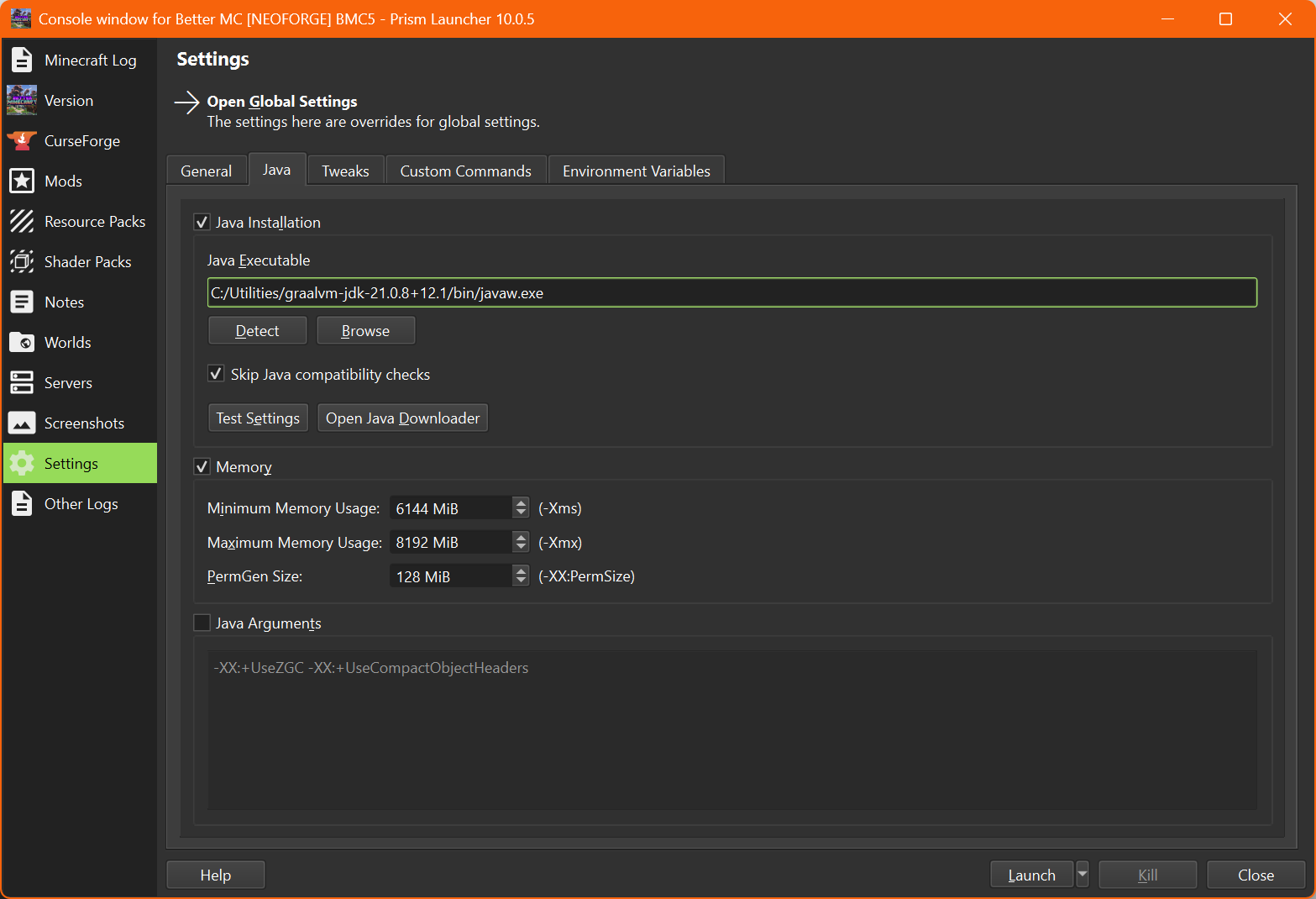
Pressing "Open Java Downloader" allows you to auto-install Java. Select "Adoptium" → Java 21. Select the latest version, from the top. Remember the exact version (in this example "21.0.10.7" but this will change as new versions are released in few months).
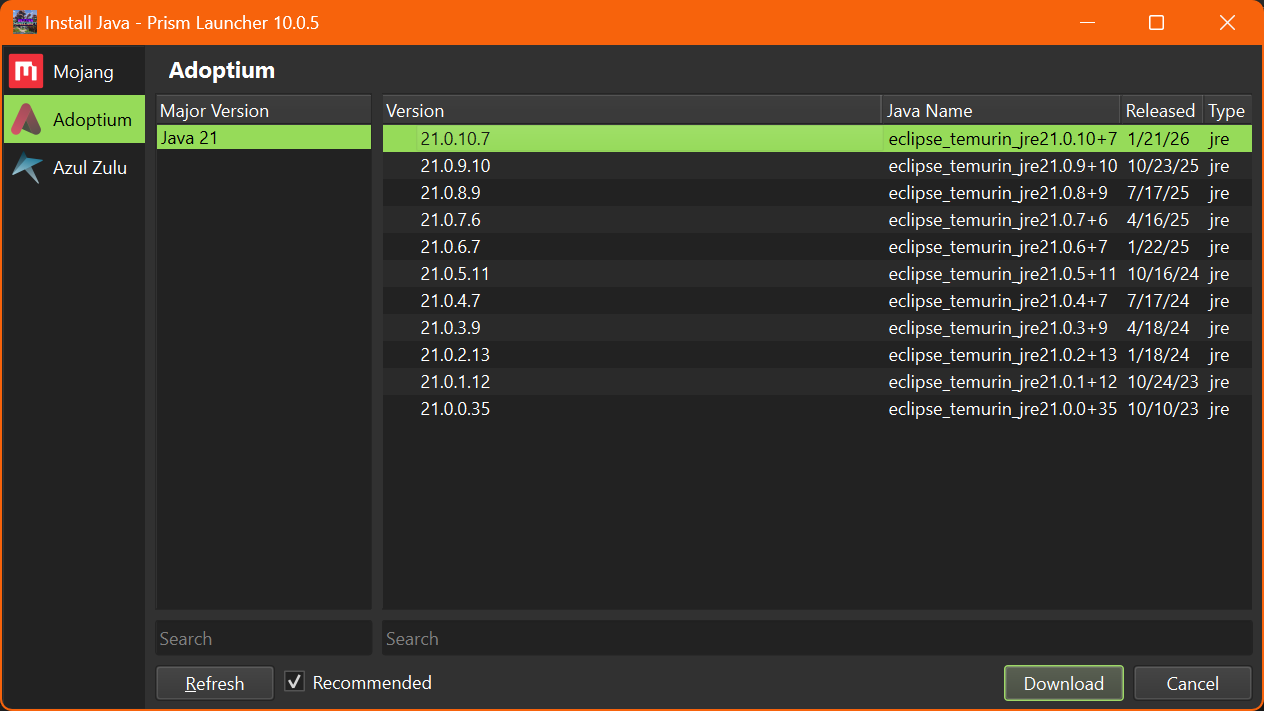
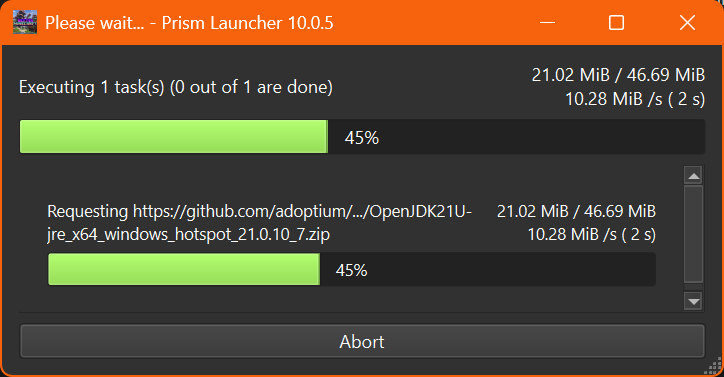
Click "Download", then wait for the download and installation to finish.
When it's done you'll be back to the previous window - click "detect" and select the version you just installed (in our example it was "21.0.10.7", and the closest match here is "21.0.10" which is the one that was just installed).
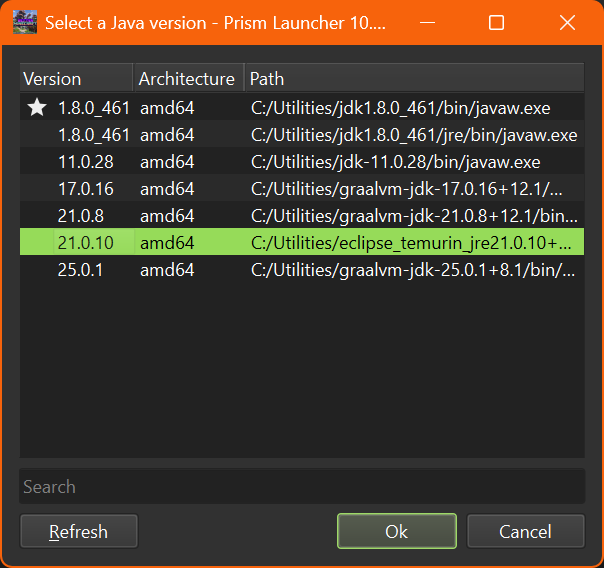
Once selected, press "Ok". That should update the value in "Java Executable" line.
Additionally it's worth to select "Memory" and setting the "Minimum Memory Usage" to "6144", and the "Maximum Memory Usage" to "8192", then click "Close" to return to the modpack list.